Shopping Cart
There are no more items in your cart
 English
 Polski

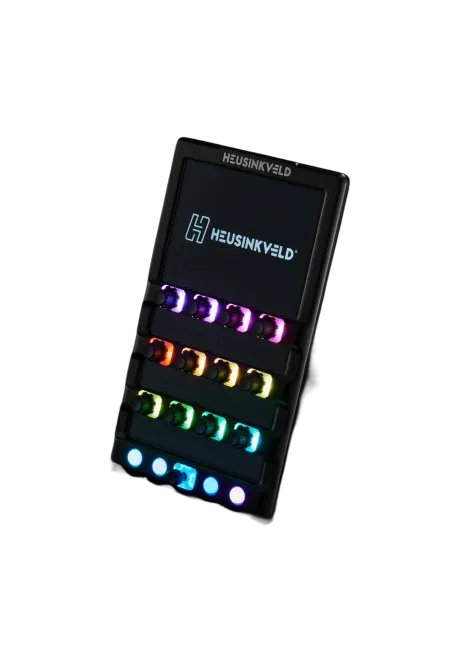

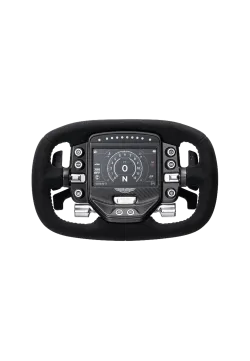
Simline Dashboard 5 Inch VoCore...
876.00zł

1,431.71zł
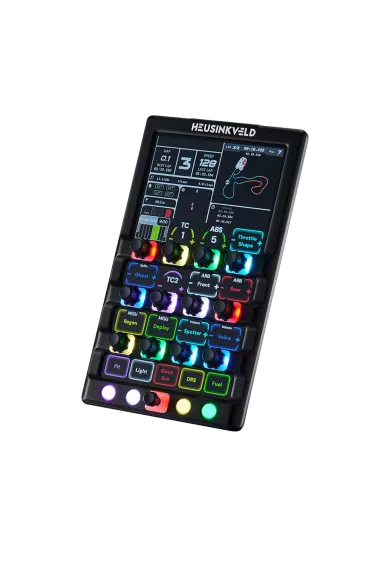
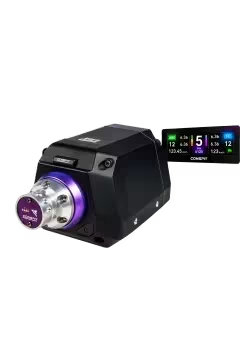
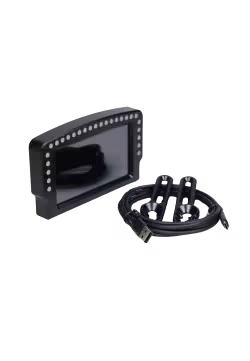
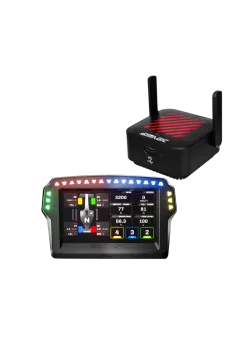
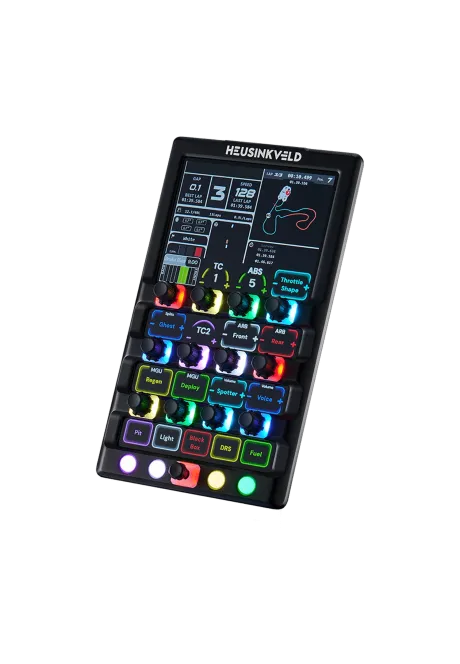
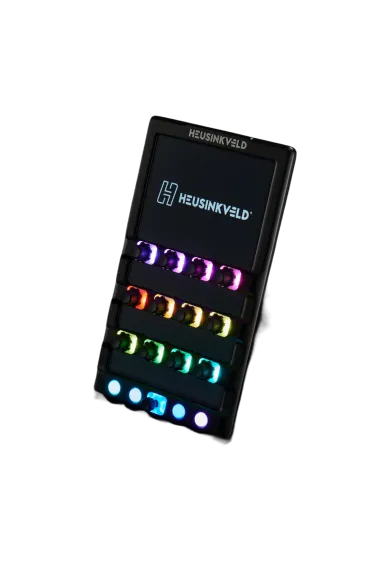
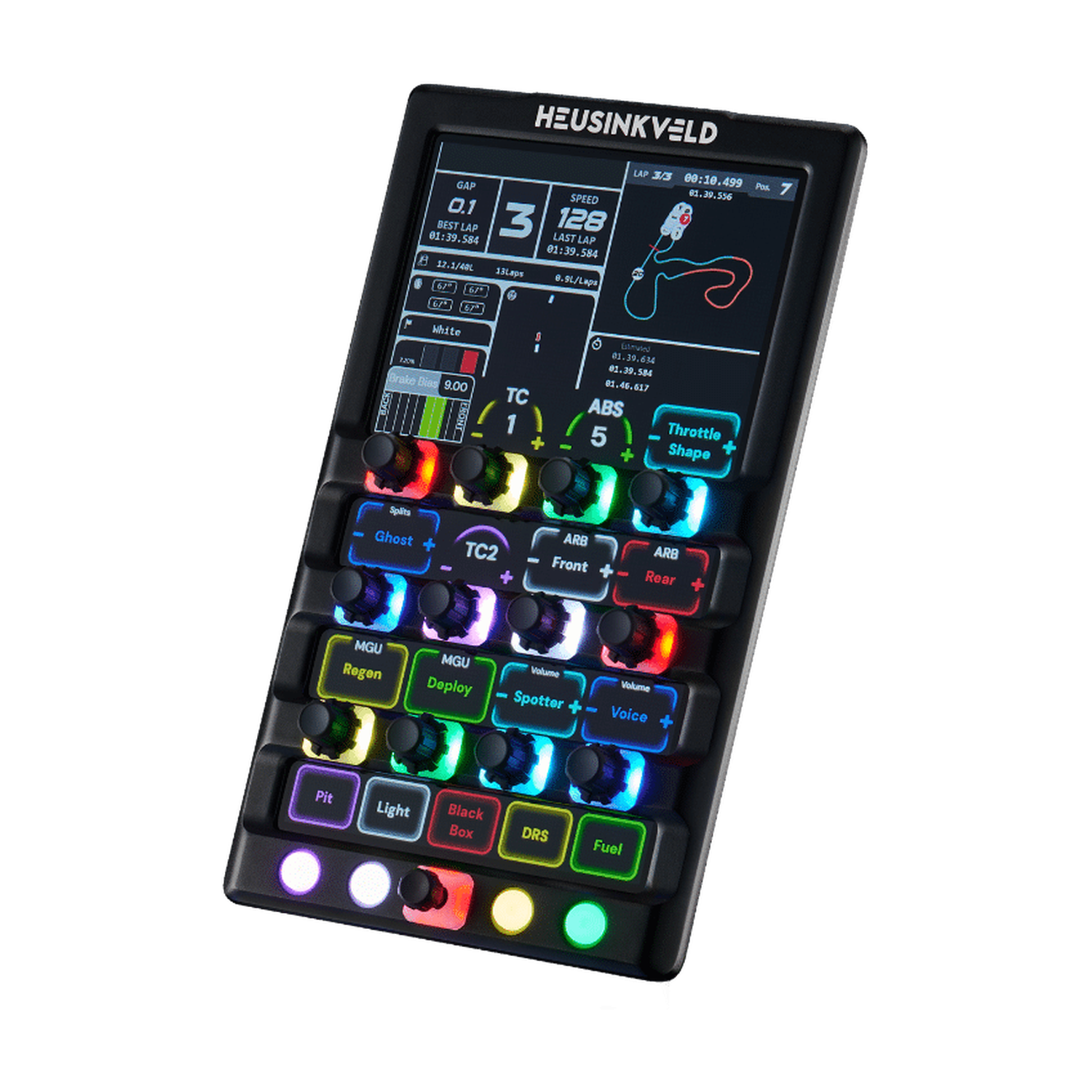
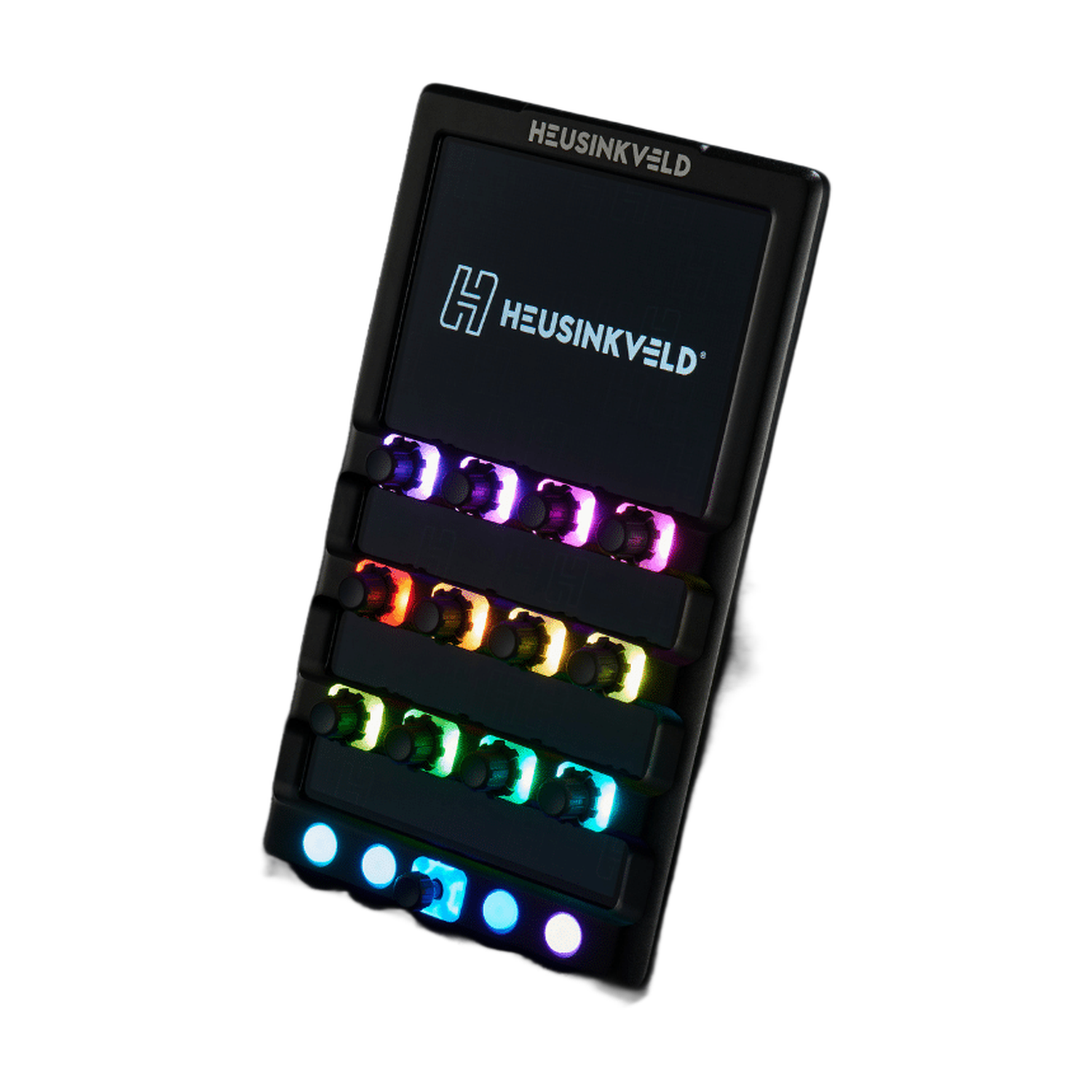
Heusinkveld DisplayDash combines a touchscreen telemetry display with physical sim racing controls for PC. Its 12 push rotaries, 4 buttons and 7-way switch provide 47 inputs, alongside 17 RGB LEDs. Configure the screen and lighting in SimHub. One USB-C cable carries data and power, while the VESA 100 x 100 mm pattern lets you choose a suitable cockpit mount.
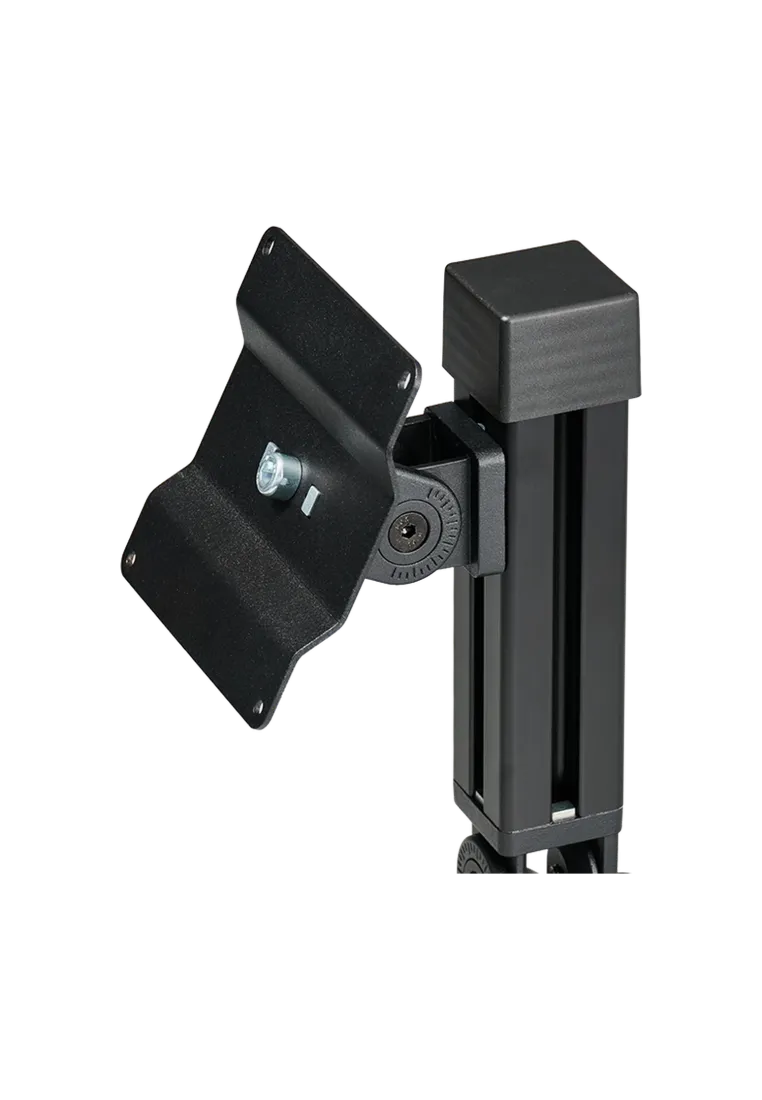
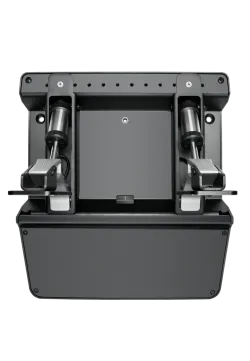
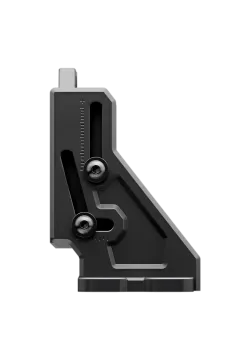
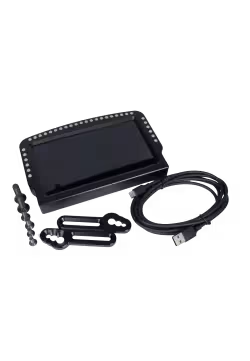
Heusinkveld DisplayDash Mount attaches the DisplayDash panel to an aluminium profile sim racing rig. A 150 mm arm, two joints and a VESA 100 x 100 mm plate let you position the panel to suit your driving position. Mount assembly hardware is included. DisplayDash is sold separately; the M4 screws for attaching the panel are supplied with the display.
0.00zł
You might also like

| Parameter | Value |
|---|---|
| Brand / model | Heusinkveld / DisplayDash |
| Device type | Touchscreen telemetry display with physical controls |
| Housing | Aluminium |
| Manufacturer dimensions | Approximately 265 x 150 mm; depth not specified |
| Screen | Touch-sensitive across the entire display; upper area also accommodates a telemetry dashboard |
| Screen diagonal / resolution | Not specified in the text specifications consulted |
| Push rotaries | 12 |
| Separate buttons | 4 |
| Multi-function switch | One 7-way switch |
| Total inputs | 47, as stated by the manufacturer; rotary functions are not counted again |
| Second control layer | Yes; hold the leftmost button in the bottom row for 1 second to switch |
| Lighting | 17 configurable RGB LEDs |
| Screen and LED software | SimHub; the free version is supported |
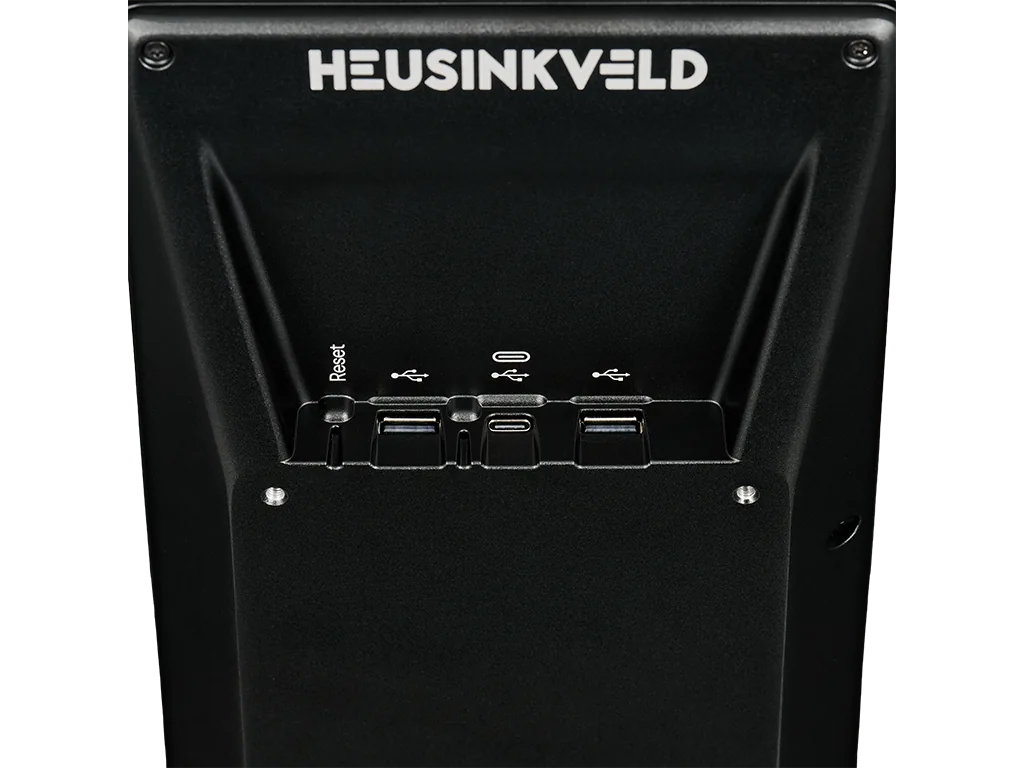
| PC connection | USB-C carries both data and power; no HDMI or DisplayPort required |
| Power requirement | 5 V / 1.5 A from a suitable USB port or powered hub |
| Integrated hub | 2 USB-A ports, up to 150 mA per port |
| Mounting | VESA 100 x 100 mm |
| Mounting thread depth | 10 mm; do not exceed this screw insertion depth |
| Net weight | Not specified |
| User manual | Official online manufacturer manual |
| Item | Support / requirements |
|---|---|
| Platform | PC running SimHub |
| Consoles | No PlayStation or Xbox support; the manufacturer specifies PC only |
| Games and cars | Available telemetry, labels and functions depend on the game, car and selected SimHub dashboard |
| Dashboards | Existing and custom SimHub layouts; layer-aware labels require support in the chosen layout |
| PC-side USB port | USB-C 3.0, or USB-A supplying 1.5 A with the included adapter; a suitable powered hub is another option |
| Devices on the DisplayDash hub | USB devices drawing up to 150 mA per port; manufacturer examples include a mouse, keyboard, dongle and compatible Heusinkveld pedals or shifters |
| Mount / cockpit | A suitable VESA 100 x 100 mm bracket with enough clearance; DisplayDash Mount is optional |
| Other brand equipment | Heusinkveld |
The DisplayDash Mount is sold separately. The manual does not specify the bolt quantity or cable length. A cockpit, computer and other equipment shown in installation examples are not included.
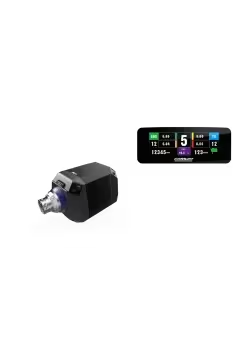
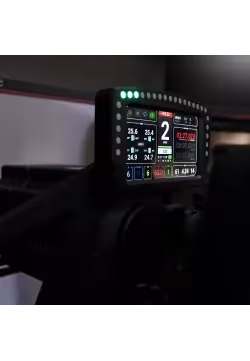
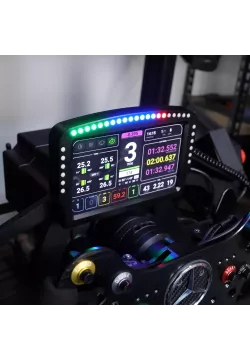
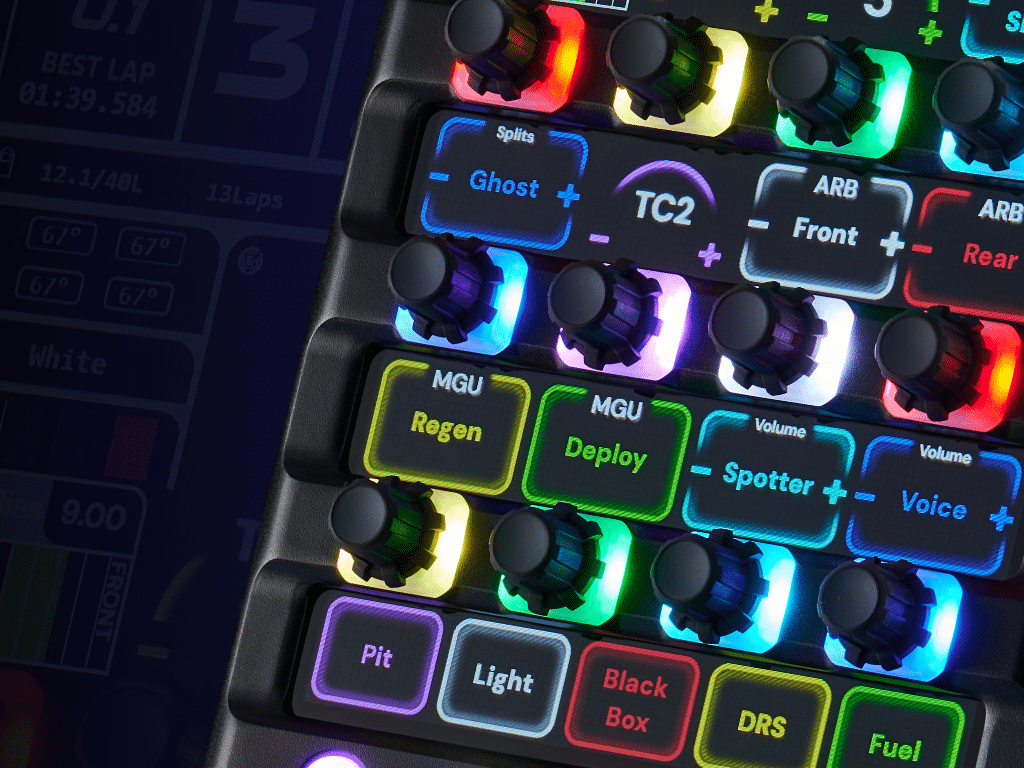
Heusinkveld DisplayDash combines a touchscreen dashboard and a physical button box for PC. It displays telemetry and contextual labels for the functions assigned to its controls.
The manufacturer specifies 47 inputs from 12 push rotaries, 4 separate buttons and a 7-way switch. This is the input count, rather than the number of individual buttons on the housing.
The entire DisplayDash screen is touch-sensitive. Configure its layouts and 17 RGB LEDs in SimHub, using existing dashboards or creating your own.
DisplayDash also works with the free version of SimHub. Accept the display-driver installation during setup if prompted; those drivers are required for the screen.
DisplayDash needs neither HDMI nor DisplayPort. A single USB-C cable carries data and power. The included USB-A adapter can be used at the computer end if the port supplies enough current.
DisplayDash requires 5 V and 1.5 A. Some USB-A ports cannot provide this current. If a USB-A connection causes problems, the manufacturer recommends USB-C or a suitable powered USB hub.
Each DisplayDash USB-A port supplies up to 150 mA. Check the accessory power requirement; devices drawing more current, such as some RGB keyboards, need another port or hub.
Hold the leftmost button in the bottom row for 1 second to switch layers. Each input gains a second output; on-screen labels can follow the layer change if the chosen dashboard supports this.
DisplayDash uses VESA 100 x 100 mm mounting. The dedicated DisplayDash Mount is optional. The device has a 10 mm mounting thread depth, which must not be exceeded by the inserted screw.
DisplayDash is intended for PC running SimHub. The manufacturer does not declare PlayStation or Xbox support. On PC, available functions still depend on game and car telemetry and the dashboard configuration.
Heusinkveld specifies a 24-month warranty from the date of delivery, in accordance with the manufacturer warranty terms.
Simline.eu acts as an intermediary in the Heusinkveld warranty process, manages the case after receiving the documentation and provides further instructions once it has been reviewed.
Email support@simline.eu with the model, a description of the fault, photos or a video showing the issue, and proof of purchase. Simline.eu will review the submission and provide further instructions.
You might also like